

Download Windows 11 Latest Version (All Edition) - Official Link

Windows 11

01 February 2024

mypcpanda

Windows 11 - Latest Version of Microsoft Windows

Download Windows 11 safely and install the latest version on your PC with this complete step-by-step guide. Learn official ISO download methods, system requirements, bootable USB creation, installation process, and genuine activation tips for smooth performance.

Window 11 latest version Official Download link (For bootable USB,DVD or ISO)


Buy Windows 11 Pro product key


How to Download Windows 11 (Home & Pro): A Step-by-Step Guide

Step 1: Check your system requirements

Before you start downloading, make sure that your system meets the minimum requirements. Here are the minimum system requirements:

  • Processor: 1 gigahertz (GHz) or faster with 2 or more cores on a compatible 64-bit processor or System on a Chip (SoC).
  • RAM: 4GB.
  • Storage: 64 GB or larger storage device.
  • System firmware: UEFI, Secure Boot capable. Check here for information on how your PC might be able to meet this requirement.
  • TPM: Trusted Platform Module (TPM) version 2.0.
  • Graphics card: Compatible with DirectX 12 or later with WDDM 2.0 driver.
  • Display: High definition (720p) display that is greater than 9” diagonally, 8 bits per colour channel.


Step 2: Create a backup of your data

It is always a good idea to create a backup of your data before installing or upgrading your operating system. This will ensure that you don't lose any important files during the installation process.


Step 3: Download the Media Creation Tool

The first thing you need to do is to download the Media Creation Tool from Microsoft's website. You can do this by navigating to https://www.microsoft.com/software-download/windows11 and clicking on the Create Windows 11 Installation Media - Download Now button. 9.64 MB Media Creation Tool will be downloaded.


Step 4: Run the Media Creation Tool

Once you have downloaded the Media Creation Tool, double-click it to run it. You will be asked to accept the license terms, so read through them and then click on the "Accept" button.
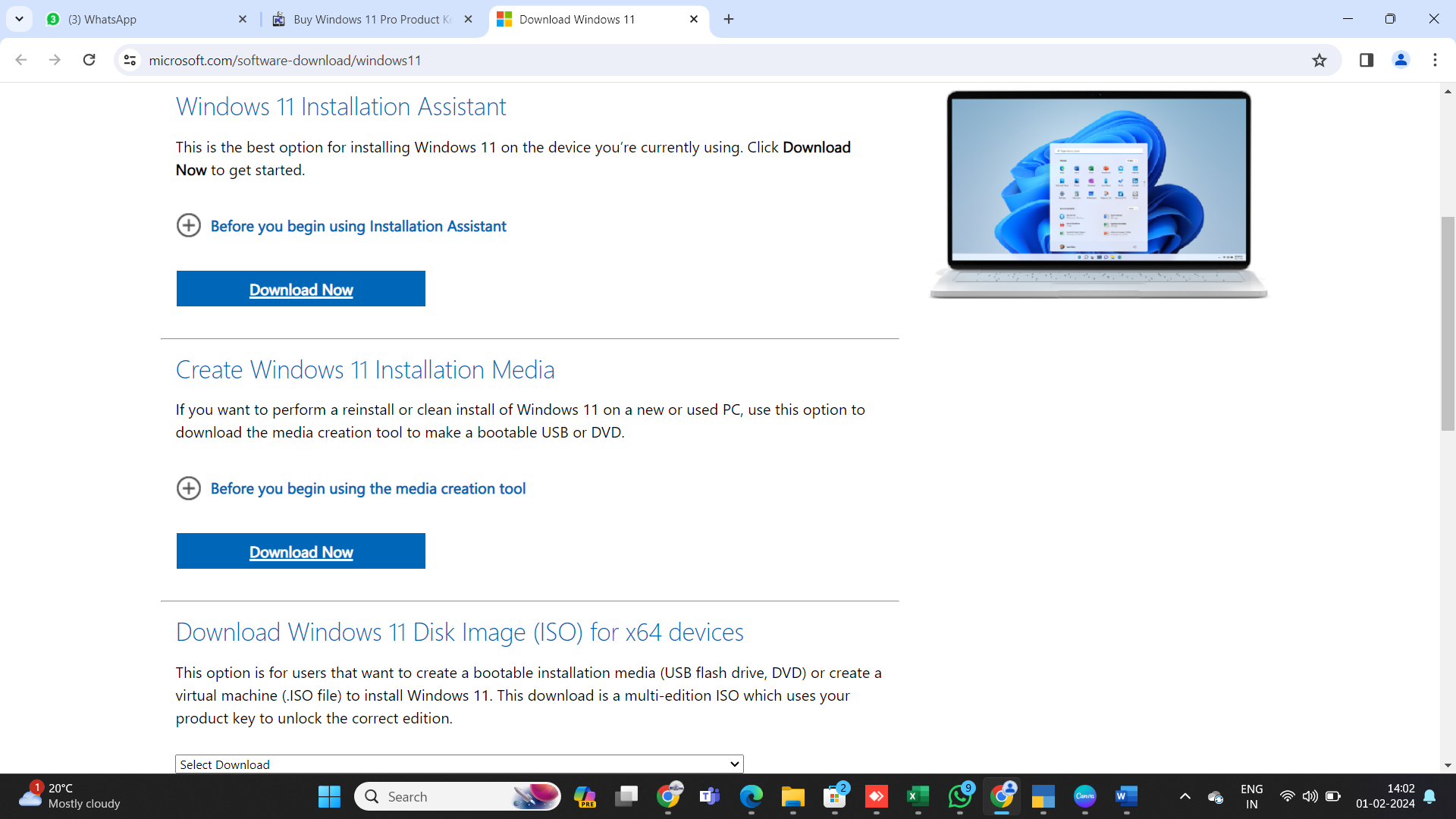
Windows 11 Media Creation Tool


Step 5: Select the language and Edition

The next step is to select the language and edition that you want to use for the installation. Make your selection and then click on the "Next" button.
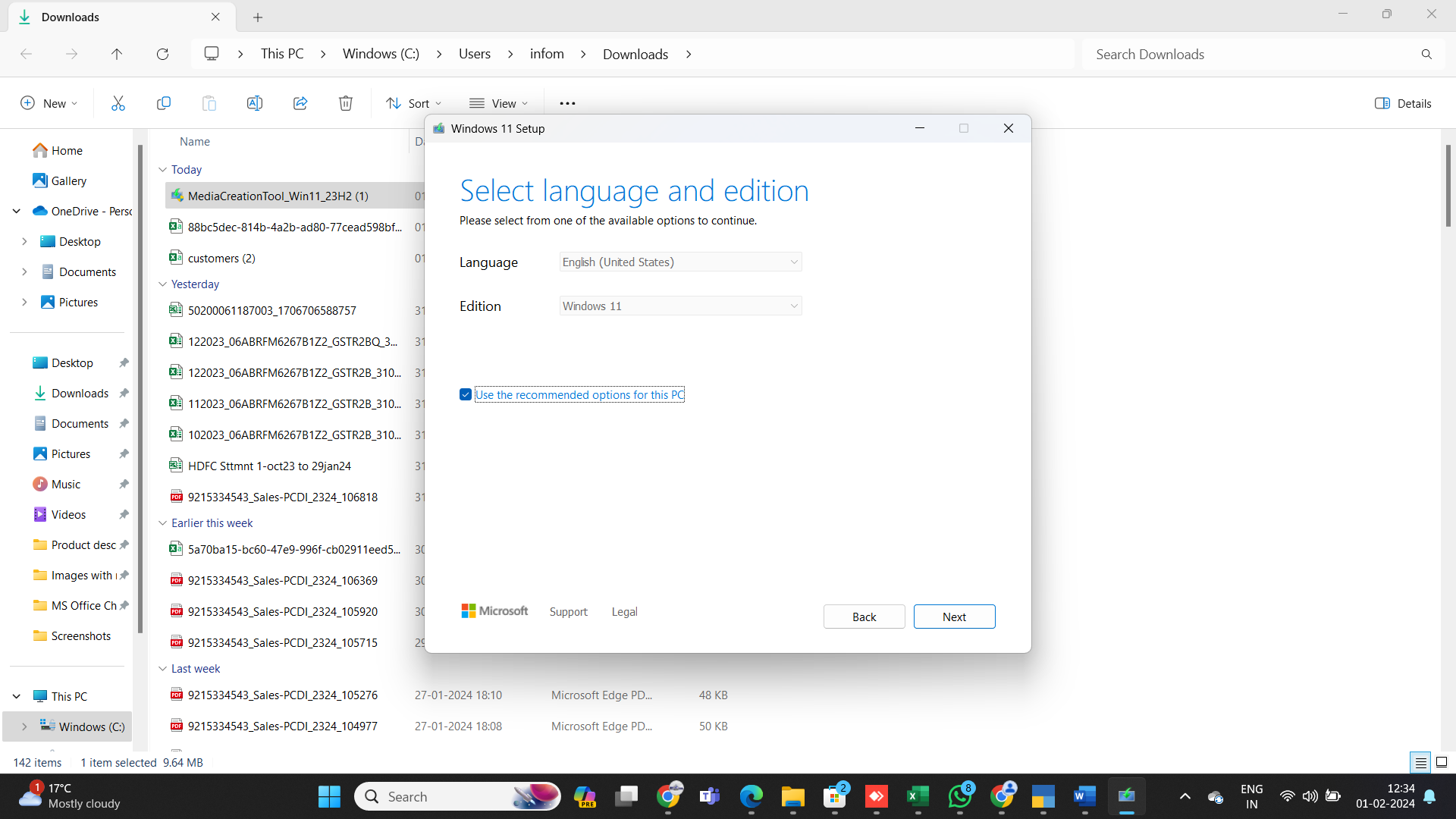
Windows 11 Language & Edition


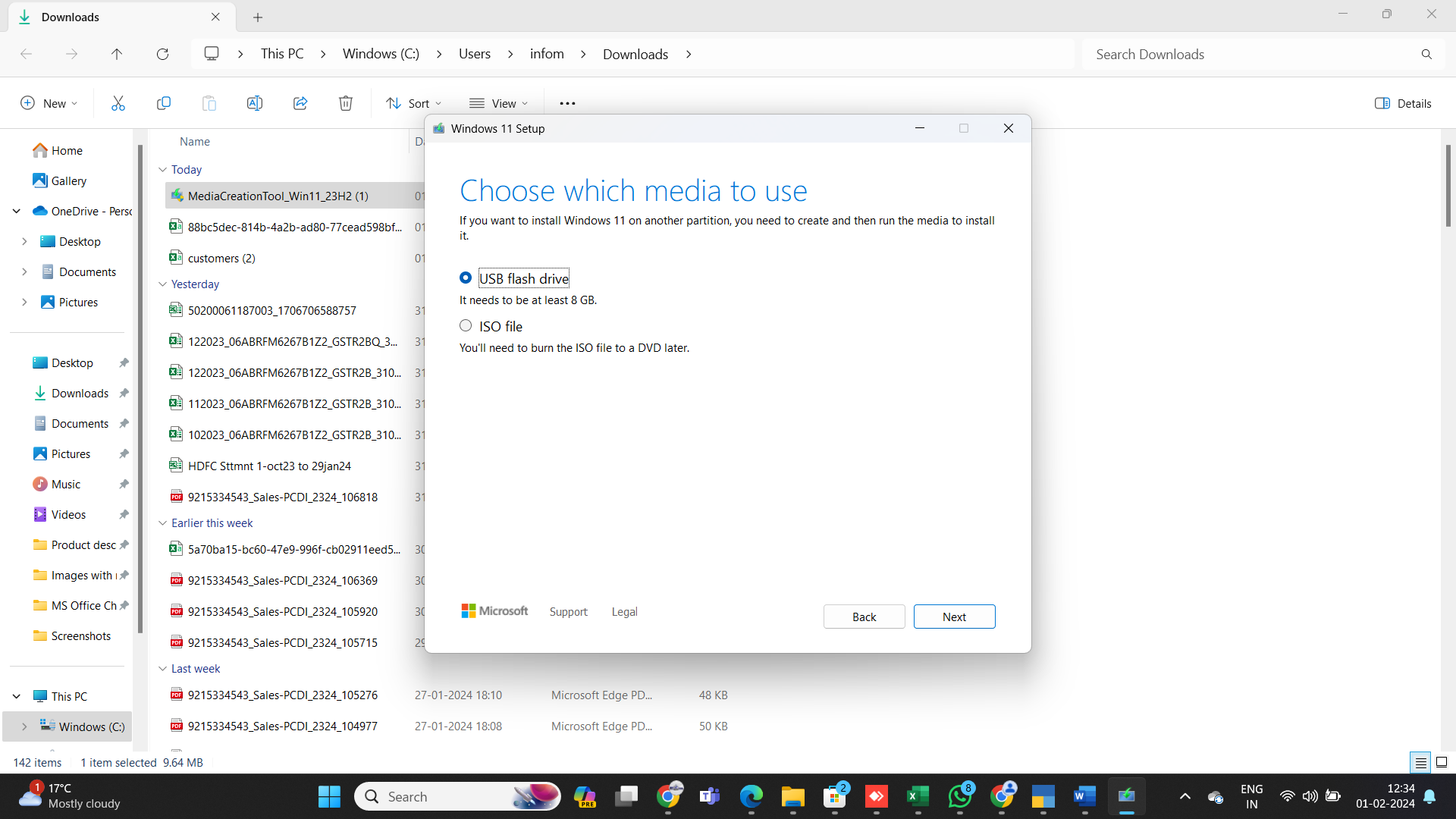
Step 6: Select the installation media source and start the download

Windows 11 Installation Media Source


Finally, select the Source where you want to save the installation media and click on the Next button to start the download process. This may take some time depending on your internet speed.

Once the download is complete, you can use the installation media to install Windows 11 Pro on your system.
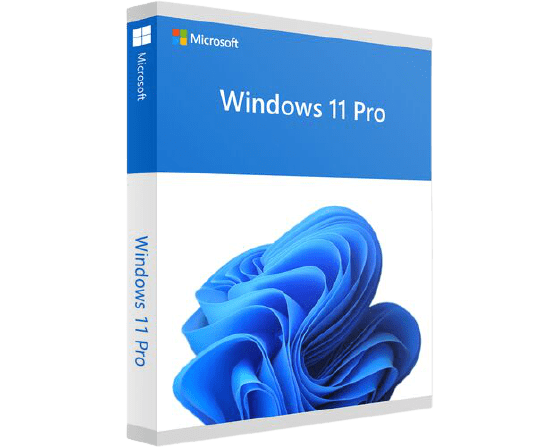
Windows 11 Pro product key


Windows 11 Pro Activation Process - Step by Step

  1. Go to Settings of your computer or laptop.
  2. Select Systam option from the list.
  3. Select Activation option on the screen.
  4. Select Activate or Change Product Key option as required.
  5. Enter the Product Key which we have sent to your email address.
  6. Enter the Activate Now button.
  7. It will take 20-30 Seconds. After that your Windows 11 pro is fully activated on your computer or laptop.

Buy Windows 11 Pro Genuine License Key -

Buy Windows 11 Pro product key


Product is added!