


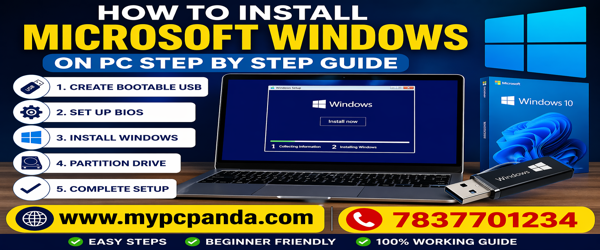
Installing Microsoft Windows correctly is important for achieving stable system performance, better security, smooth software compatibility, gaming optimization, and professional productivity. Whether you are building a new PC, upgrading your old operating system, replacing storage drives, formatting your computer, or reinstalling Windows after system issues, a proper Windows installation helps improve speed, security, and long-term reliability. Microsoft officially recommends using Windows Update, Installation Assistant, or bootable installation media for secure Windows installation and upgrades.
Users who regularly work with Microsoft Windows, MS Office, Quick Heal, K7 Antivirus, Kaspersky, Guardian, McAfee, Net Protector NPAV, and ESET Antivirus software solutions often require a secure and optimized Windows environment for office productivity, cybersecurity protection, gaming, software development, online learning, and business operations. A properly installed Windows system improves software stability, hardware compatibility, internet security, and overall system performance.
Modern Windows operating systems such as Windows 11 include advanced features like TPM 2.0 security, Secure Boot protection, gaming optimization, improved multitasking, and better hardware management. Microsoft recommends checking system compatibility before installation using PC Health Check and official system requirements.
Before installing Windows, users should verify system compatibility.
Microsoft officially recommends checking compatibility before installation.
A bootable USB drive is required for clean Windows installation.
Microsoft and hardware manufacturers recommend using official installation tools for safe installation.
Microsoft also provides Windows Installation Assistant and Windows Update methods for supported systems.
| Feature | Windows 10 | Windows 11 |
|---|---|---|
| User Interface | Traditional | Modern Redesigned UI |
| Security Features | Standard | Advanced TPM 2.0 Security |
| Gaming Optimization | Good | Better DirectStorage Support |
| Multitasking | Standard | Improved Snap Layouts |
| Hardware Support | Older PCs Supported | Latest Hardware Optimized |
After installation, users should:
Microsoft recommends enabling automatic updates and security features for long-term protection.
A newly installed Windows system should always include trusted antivirus protection against:
Popular antivirus options include:
These antivirus solutions help improve cybersecurity and safe browsing performance.
Using unofficial installation files or activation tools may cause:
Licensed Windows installations provide better security, reliable updates, and long-term stability.
My Pc Panda provides:
Users can also explore:
Installing Microsoft Windows properly helps users achieve better performance, stronger security, improved multitasking, gaming optimization, and stable software compatibility. Following the correct installation process together with genuine activation, official updates, and trusted antivirus protection ensures a secure and reliable Windows experience for both personal and professional use. Microsoft continues improving Windows installation, update management, and driver recovery features to provide better user control and system stability in 2026.